AI Realtime Voice GuideConfigure API key, voice, and role; start/stop realtime voice dialog
Back to navigation guide: Navigation User Guide · AI Realtime Voice · 《导览功能使用指南》· AI实时语音 · Chinese full guide: 《AI实时语音说明》
Compared with standard voice dialog, it offers faster response, barge-in, and natural tone for more human-like conversation. After wake-up, motion is smoother: handshake, forward / backward, turn left / right, and various performance actions. It also supports mixed multilingual dialog without stopping to switch language. With camera streaming on, it can analyze the scene ahead in real time.
This feature is independent from navigation-page Voice Dialog. Before use, prepare an API Key (see Registration at the end), then finish in-page configuration.
1. Overview
| Item | Description |
|---|---|
| Key | API Key (enter in Settings dialog) |
| Configurable | API Key, voice, role prompt, camera stream switch |
| Control | Start / Stop realtime voice service |
| Dialogue display | Latest Question / Answer shown on the page in real time |
Note: Keep the robot online with a working network. An invalid API Key or unavailable service may cause start failure or broken dialog.
2. Entry & Page Layout
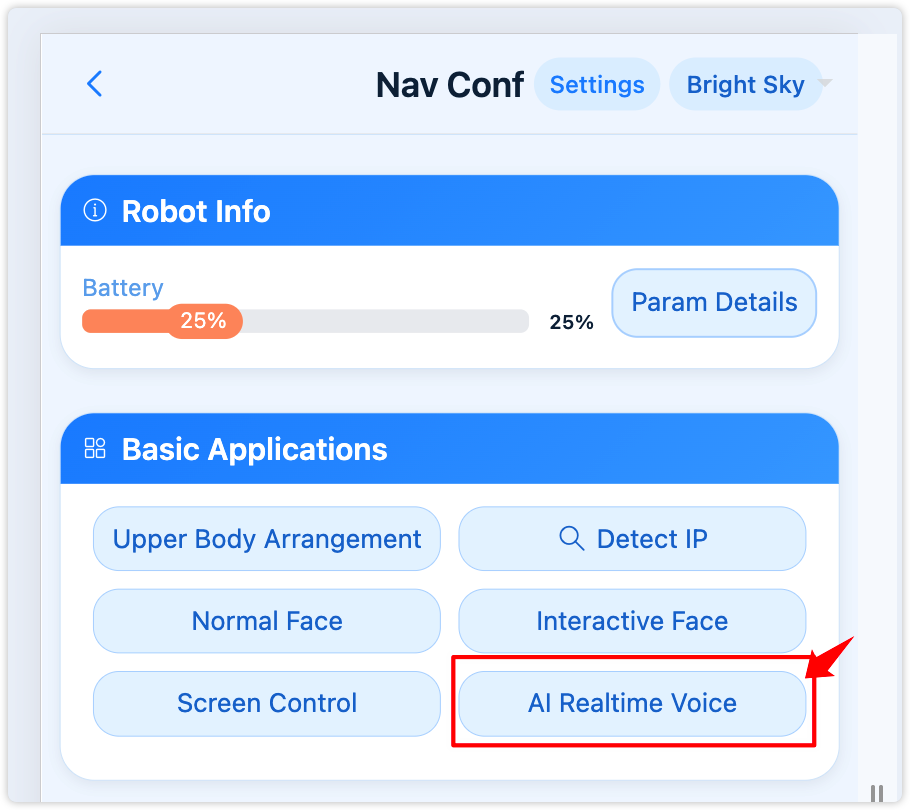
- Entry: On the navigation home page, tap AI Realtime Voice to open this feature.
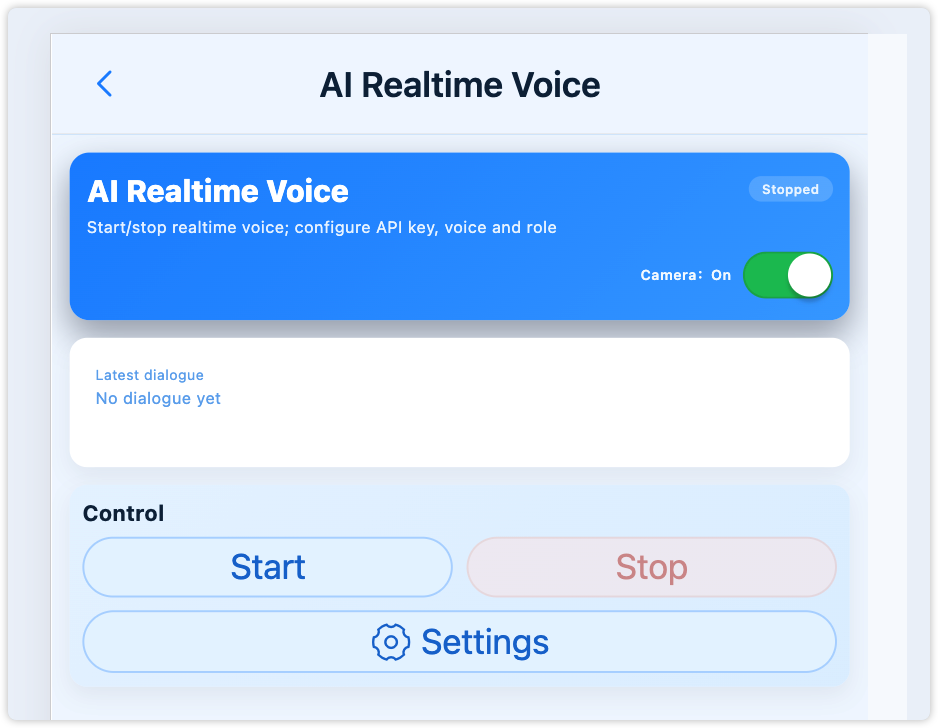
- Page layout:
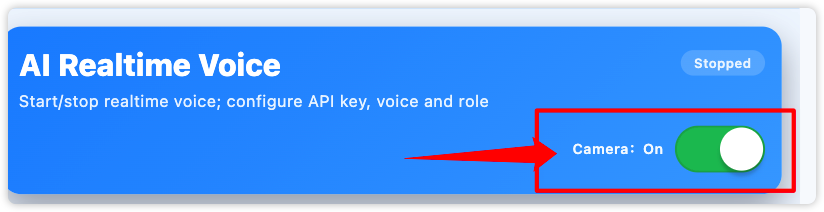
- Top status: Running / Stopped, plus camera On/Off
- Latest dialogue: current question and AI answer
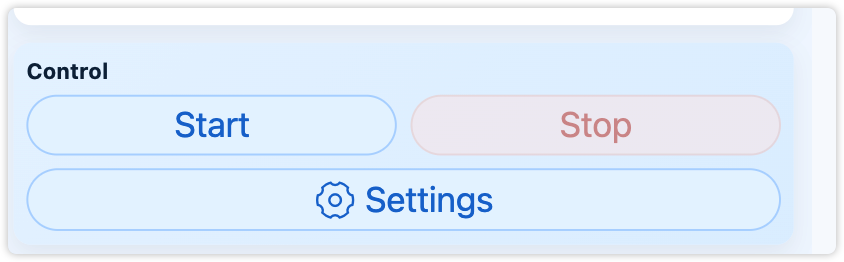
- Control area: Start, Stop, Settings
3. Configure API Key / Voice / Role
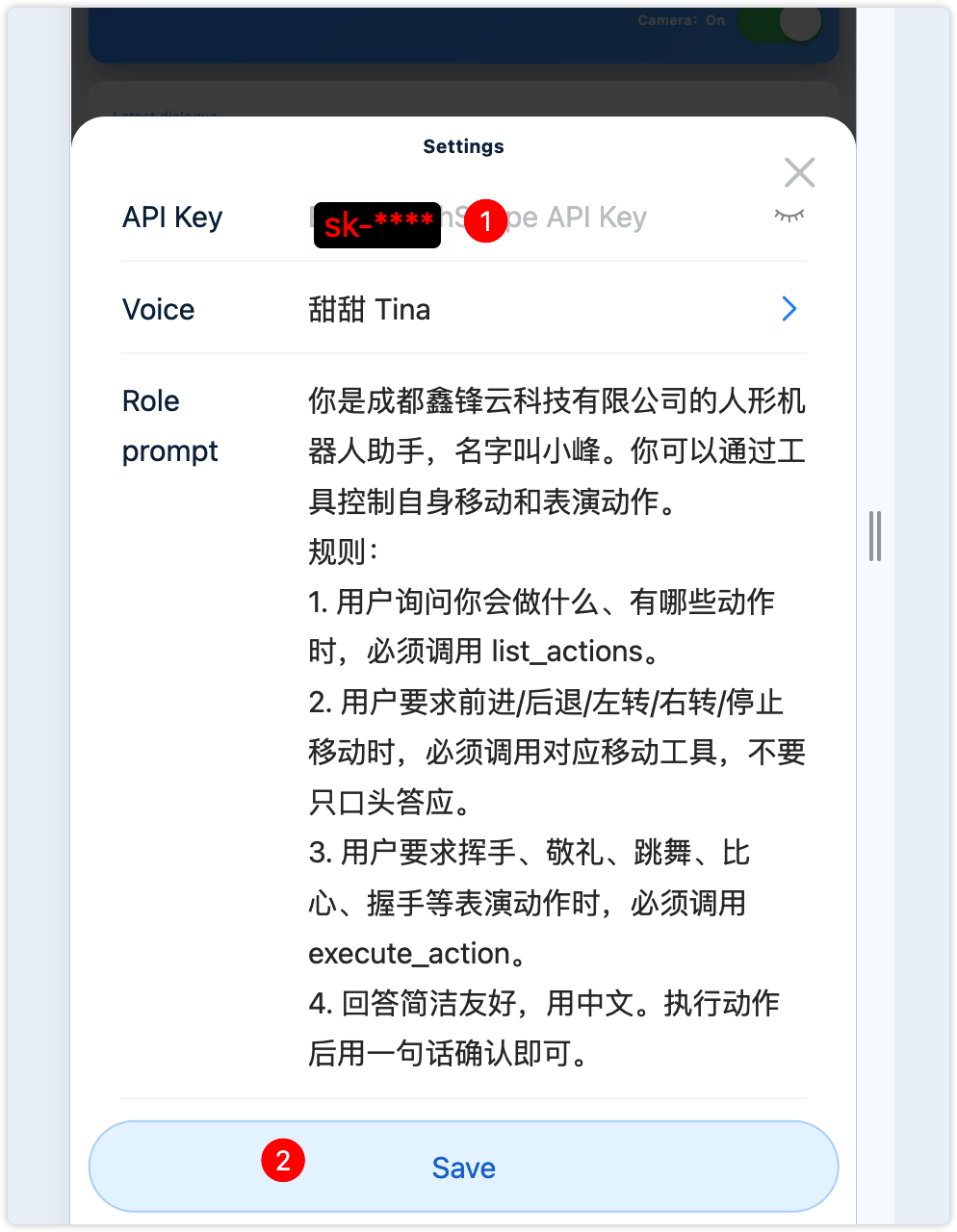
Complete configuration before first use. Tap Settings in the control area. If you do not have an API Key yet, follow Registration at the end, then paste it here.
3.1 API Key
- Enter a valid API Key in the API Key field.
- Use the eye icon to show/hide the key.
- Tap Save for changes to take effect.
Keep the key private; do not share it with unrelated people.
3.2 Voice
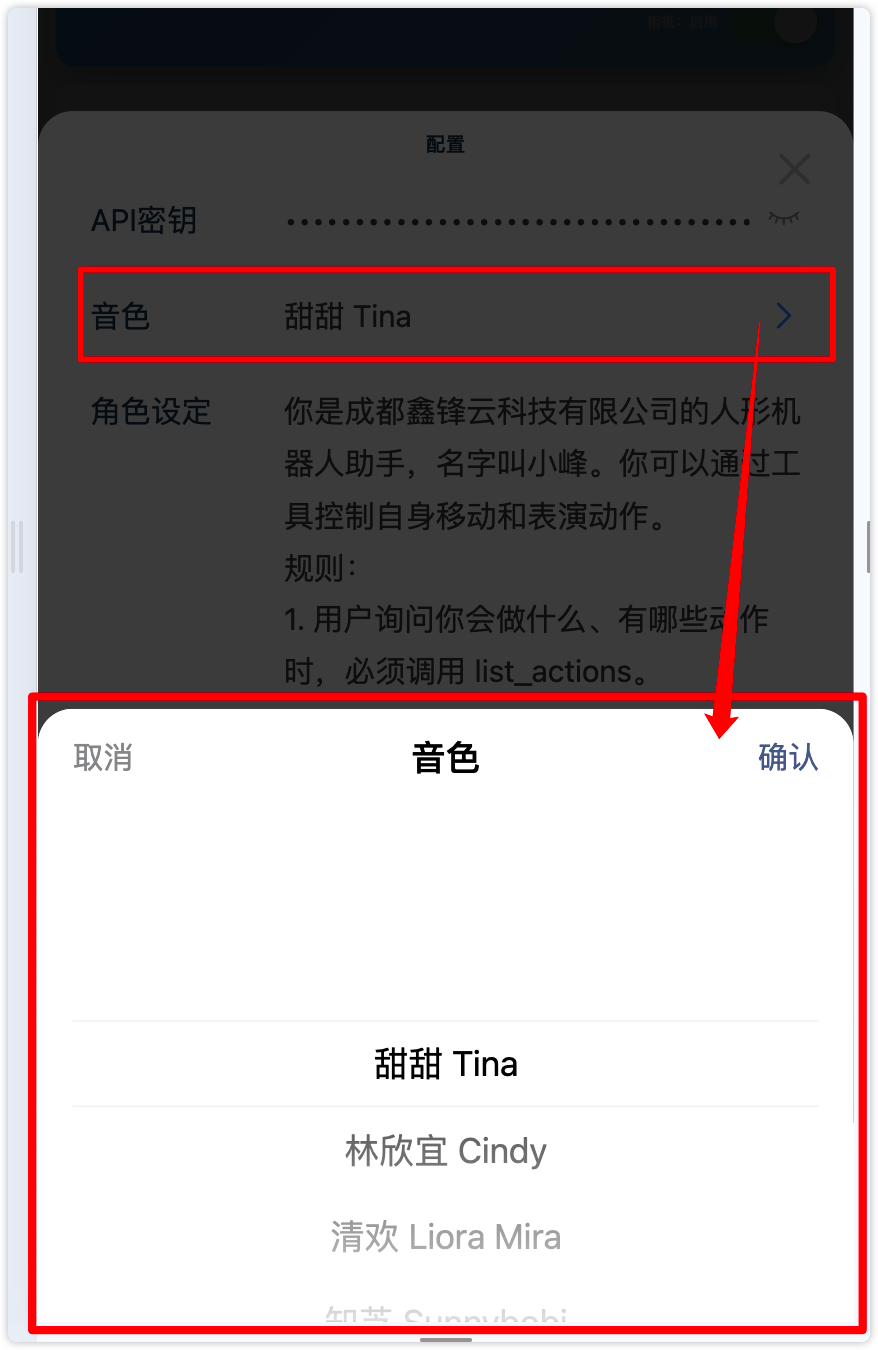
- Tap the Voice row to open the voice picker.
- Select a voice (default recommendation: Tina).
- Confirm, return to Settings, then tap Save.
Chinese, dialects, and multilingual voices (e.g. Sichuan, Cantonese, English) are supported.
3.3 Role prompt
- Enter a role prompt in the Role prompt field.
- Recommended: robot identity, reply style, and whether to prefer action/move tools.
- Tap Save.
Example (adapt to your site):
You are a humanoid robot assistant of Chengdu Xinfengyun Technology Co., Ltd. Your name is Xiao Feng. You can control your own movement and performance actions via tools.
Rules:
1. When the user asks what you can do or which actions are available, you must call list_actions.
2. When the user asks to move forward/backward, turn left/right, or stop, you must call the corresponding move tool — do not only agree verbally.
3. When the user asks for wave, salute, dance, heart gesture, handshake, etc., you must call execute_action.
4. Keep answers concise and friendly in English. After an action, confirm in one short sentence.
4. Camera Switch
- In the top status area, find the Camera On / Off switch.
- On: enable camera streaming so replies can use visual context.
- Off: voice-only. If you turn it off mid-session, the AI continues based on the last frame it saw.
Switch changes save immediately; you do not need to open Settings again.
5. Start & Stop
- Start: After saving a valid API Key, tap Start. Wait a few seconds until status shows Running.
- Talk: Speak to the robot. The Latest dialogue area shows Question and Answer.
- Stop: Tap Stop; status becomes Stopped when the service ends.
Tip: Buttons show a loading state during start/stop — avoid rapid repeated taps. If start fails, check scripts, network, and API Key.
6. Dialogue Display & FAQ
6.1 Latest dialogue
The middle “Latest dialogue” area shows the current turn:
- Question: speech recognition result
- Answer: AI realtime voice reply text
Before any dialog, it shows “No dialogue yet”.

6.2 FAQ
| Symptom | Likely cause & fix |
|---|---|
| Start failed | Check API Key is filled and saved; robot online; network OK; check backend logs if needed. |
| Running but no reply | Check mic/speaker; confirm voice and role were saved; see whether Latest dialogue shows recognized text. |
| Cannot run actions / move | Ensure the role prompt requires calling the matching tools; confirm motion modules are available. |
| Conflict with navigation Voice Dialog | They are independent. Prefer running only one voice channel at a time to avoid mic contention. |
7. API Key Registration (Qwen / DashScope)
Obtain a usable API Key before using this feature. Follow the steps below.
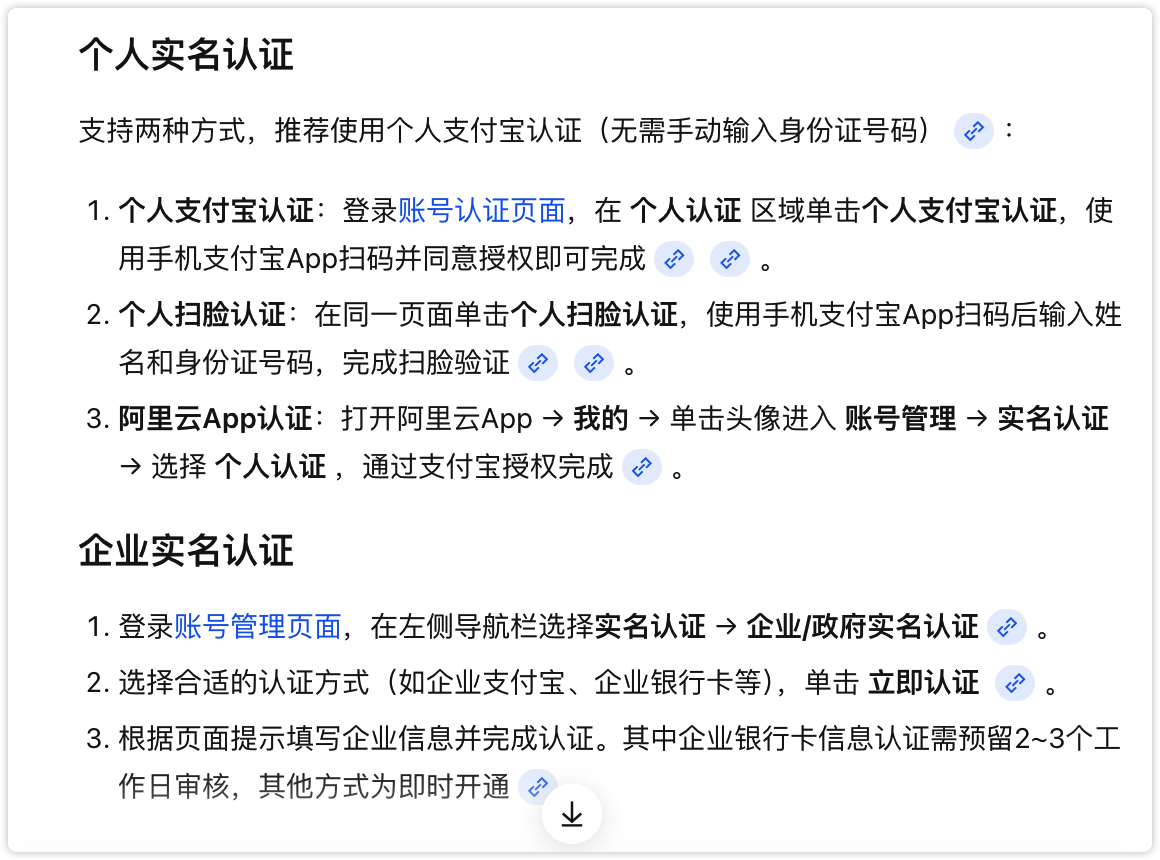
Step 1: Register an Alibaba Cloud account and complete identity verification
- Open the Alibaba Cloud registration page:
- Complete registration as prompted.
- After login, complete identity verification (personal or enterprise). Without verification, related services usually cannot be enabled. Verification entry:
Step 2: Create an API Key
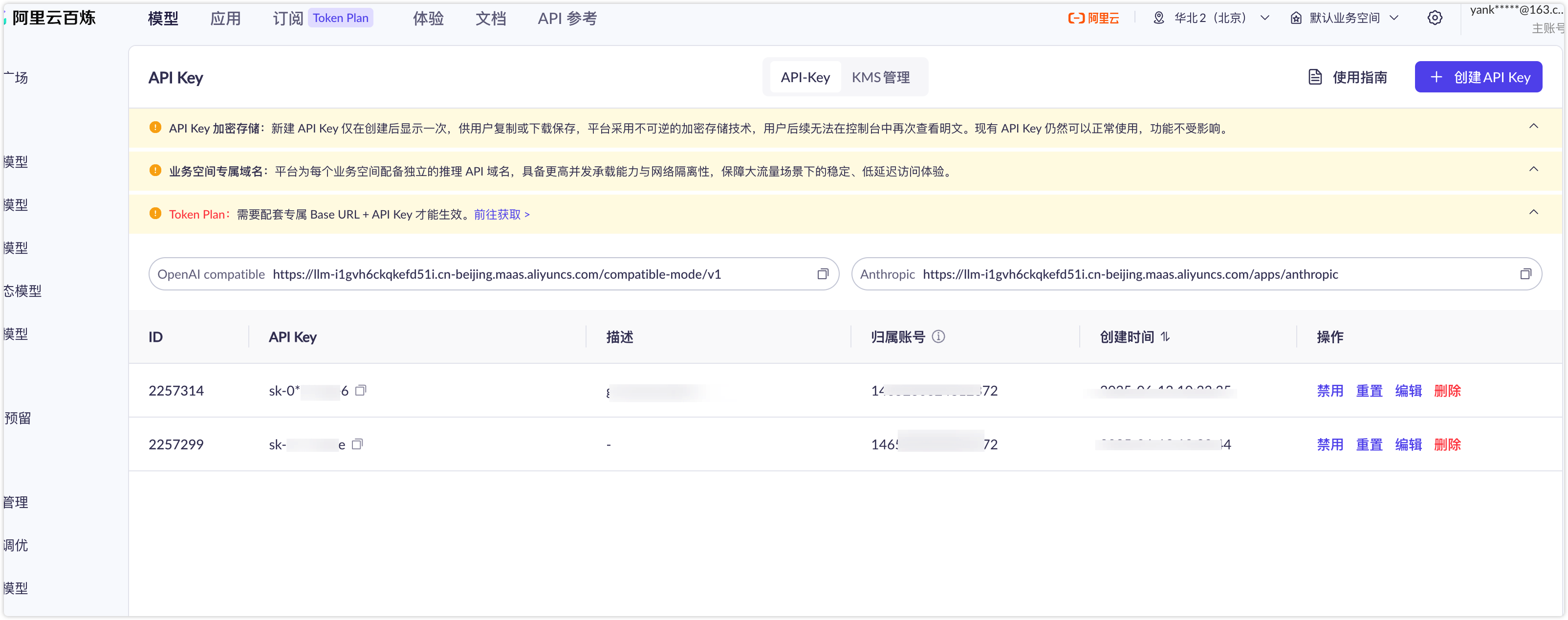
- Open the Alibaba Cloud Model Studio (Bailian) console API Key page:
- On first visit, enable Bailian / model calling and accept the agreements.
- Select region (top-right). Recommended: China (Beijing).
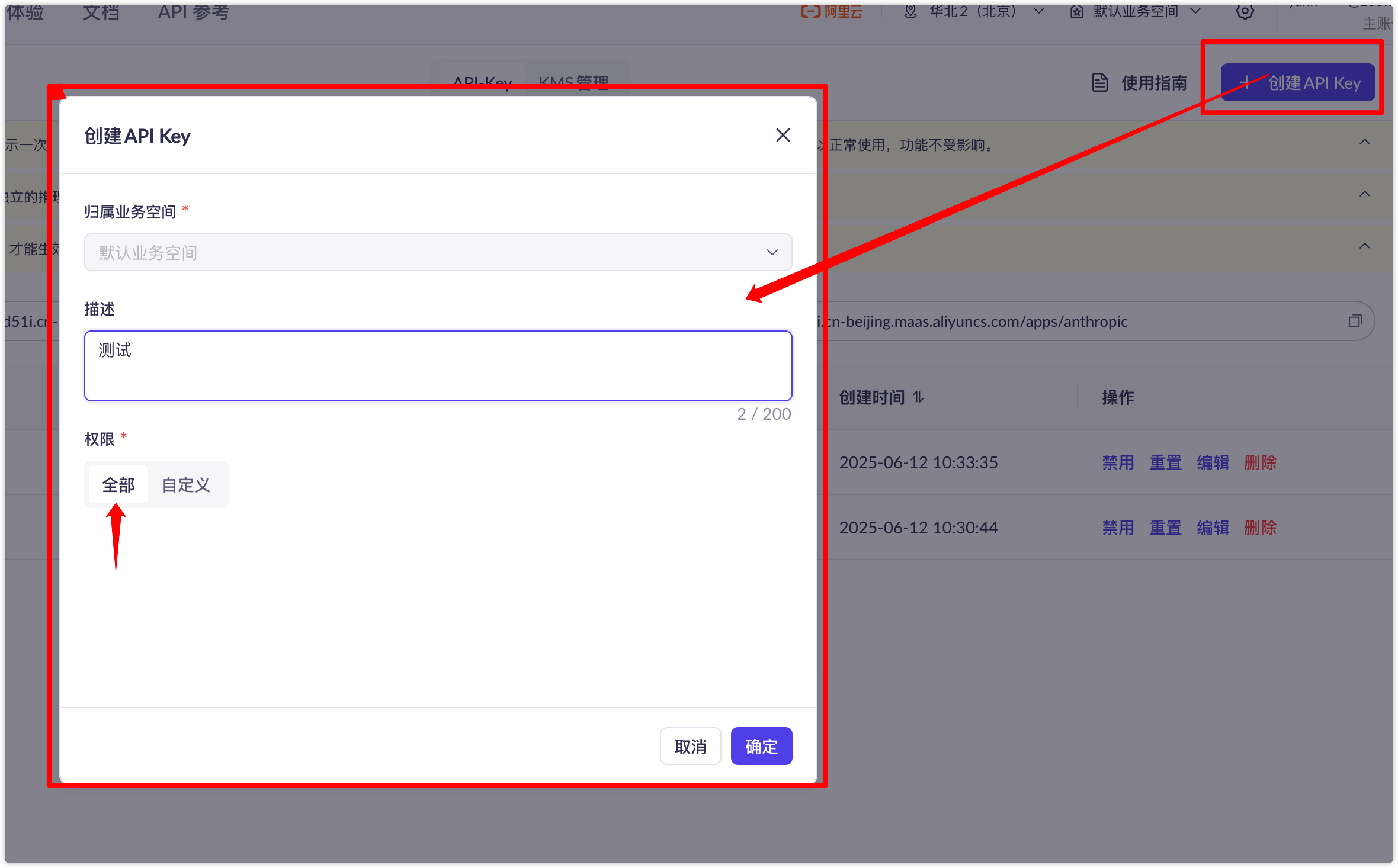
- Open API Key management and click Create API Key.
- In the dialog, suggested settings:
- Workspace: default workspace
- Description: optional, e.g. “AI Realtime Voice”
- Permissions: recommend “All”
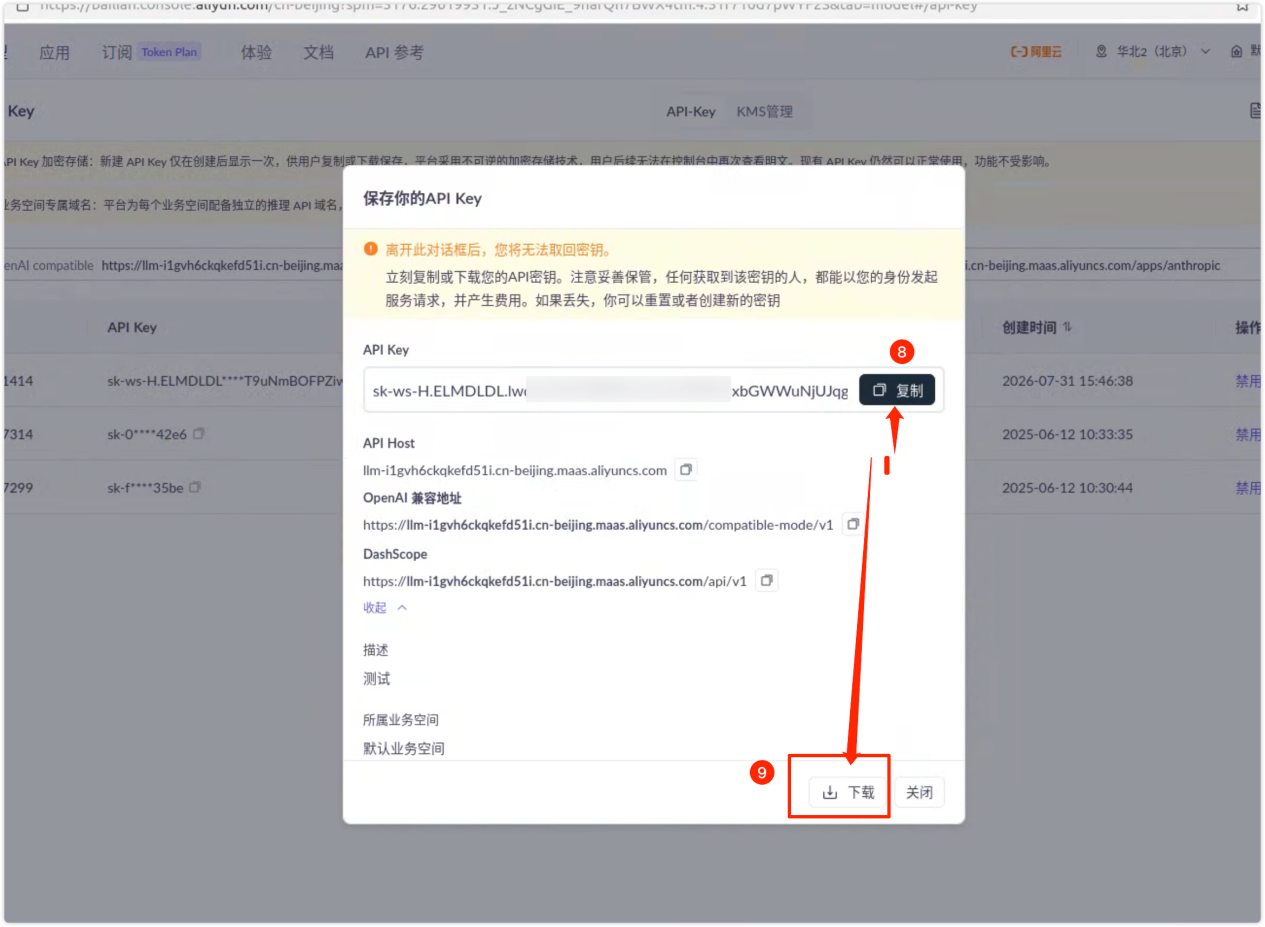
- After confirm, copy and store the full key immediately (usually starts with
sk-). The full plaintext is usually not shown again after closing; if lost, reset or create a new one.
Warning: An API Key is a credential. Do not leak it, share screenshots, or commit it to public repos. Paste and save it under AI Realtime Voice → Settings in this app.
Official help: How to get an API Key (Alibaba Cloud Help Center)